How to Prevent Duplicate Vendor Payments
Use one vendor invoice register to check mailed checks, card payments, and scheduled transfers before paying a supplier bill. See a worked $690 example.

A supplier says invoice CP-4817 is overdue, but your payment log shows you mailed the check three days ago. Before you queue another payment, look up the invoice and the check in the same register. A reminder can arrive while a payment is still in transit, and an old vendor statement can include bills you have since paid.
A small business can prevent many duplicate vendor payments with one invoice register, a check of the payment channels it actually uses, and a rule for holding uncertain items out of the next batch.
Give each vendor bill one record
Use one shared register for incoming bills. Record the paying business, vendor, supplier invoice number, invoice date, currency, total, due date, and payment status. Save the original invoice with that record. When the vendor follows up by email or sends a statement, attach the follow-up to the existing record.
Search by paying business, vendor, and invoice number before creating a bill. Search for common formatting variations such as CP-4817 and CP4817, while preserving the exact number printed on the invoice. For bills without a number, look for a match on the service period, order reference, date, and line items. Ask the vendor about a close match before treating it as a new bill.
Equal amounts can belong to separate invoices. Compare what the vendor billed for, especially when rent, maintenance, or supplies cost the same each month. If an invoice arrives as a revision, confirm which version is payable and keep the earlier copy with the record.
Check your payment channels before releasing a batch
Open each proposed bill beside the register and the relevant payment records. Include anything that may bypass the regular bill-paying process, such as an owner paying by company card or a supplier charging an automatic debit.
- Ready to pay. Check the invoice and approved amount. If you use purchase orders, compare the original order and what you received. Check for an earlier payment or a scheduled one that already covers the amount you are about to release.
- Scheduled or sent. Enter the payment channel, amount, date, and any available confirmation number in the register. Keep that amount out of the next batch while you verify its status.
- Cleared. Match the bank or card activity to the payment reference. Record the amount applied to each invoice if one payment covers several bills. A partial payment leaves an open balance.
- Failed, returned, or uncertain. Check the bank or payment provider and contact the vendor through a known channel when needed. Confirm the first payment can no longer go through before releasing a replacement.
In a two-person business, the person releasing payment can compare the proposed batch with the register. If you work alone, check the payment channel and invoice record again immediately before release. Update the register before another person or a later batch can pick up the bill.
Work through a $690 supplier statement
In this fictional 2026 example, a bike repair shop receives a statement that lists two open invoices from one supplier. CP-4817 is for $420. CP-4831 is for $270. Both bills match the parts the shop received.
The shop already mailed check 1042 for CP-4817. Its register has the check number and mailing date. The bank shows no clearing entry yet. The shop confirms that CP-4831 has no payment in the register, card history, or scheduled transfers.
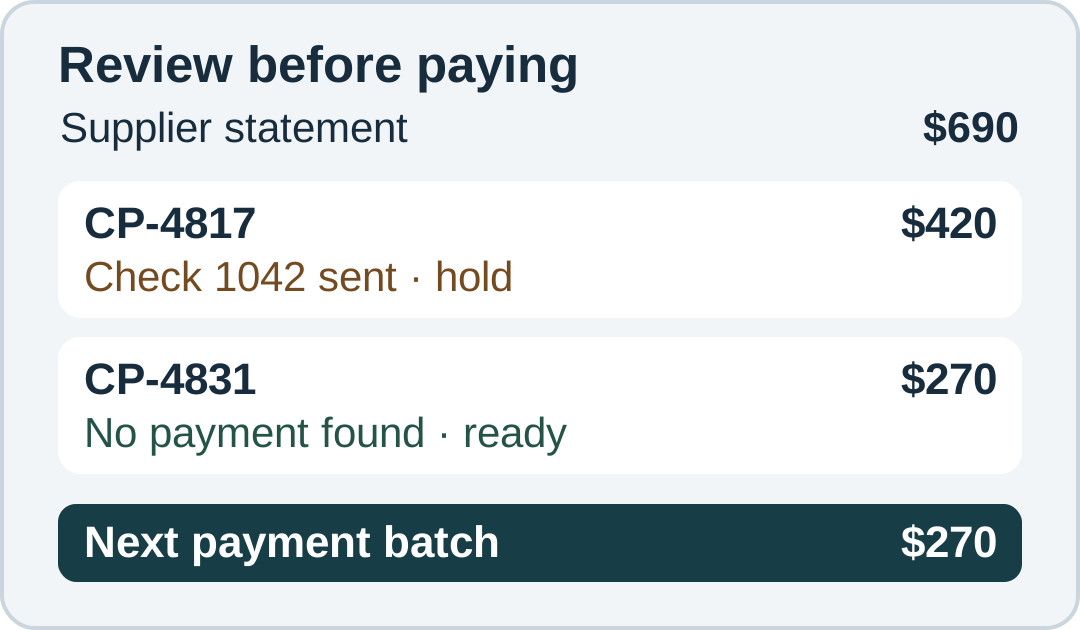
The next batch is $270. The owner sends the supplier the reference for the $420 check and follows up until it clears or the check is confirmed void. If the supplier later reports a missing check, the owner verifies the old check's status before issuing a replacement. Both references stay attached to CP-4817.
Resolve a duplicate that actually cleared
If the register shows two payment entries, first compare the bank, card, or provider records. A manually entered payment and an imported copy may describe one withdrawal. If there is one withdrawal, have whoever maintains the books correct the duplicate entry and keep the evidence they used.
If two withdrawals cleared against the same bill, save both references and ask the supplier how it applied each. Request a refund or agree in writing to apply the extra amount to a specific future invoice. Keep the case open until the bank shows the refund or the supplier statement shows the credit applied. Have your bookkeeper review the entries if the extra payment, refund, or credit crosses a reporting period.
Keep the evidence with the invoice
Save the bill, any relevant purchase order and delivery evidence, the payment confirmation, and the vendor correspondence or credit memo. IRS recordkeeping guidance explains that documenting a purchase or expense may take more than one record, including the invoice and proof of payment. IRS Publication 583 also discusses supporting business records and reconciling a business checking account. This guide covers payment records and workflow. Ask your tax adviser about the treatment of any specific expense or credit.
A consistent order number gives you another way to find the original purchase when a bill gets forwarded. Use the Eonebill purchase order generator to prepare the order for your next supplier purchase. Keep the order number with the supplier's invoice and payment reference. If you need a refresher on what belongs on the order, see the purchase order template guide.
Create this in 30 seconds — free invoice with Eonebill, no sign-up required.
Create Free Invoice →Frequently Asked Questions
More Posts

How to Resend an Invoice Copy Without Charging Twice
Resend a lost invoice with its original reference, distinguish copies from corrections, and explain payments already received. Includes a $900 example.

How to Invoice a Partial Delivery Without Billing Twice
Bill split shipments clearly: link each delivery note to its invoice, track quantities already billed, and avoid charging twice. Includes a $480 worked example.

How to Show a Deposit on a Final Invoice
Show the original project total, a deposit already paid, and the exact balance due on a final invoice. Follow a worked example and check the payment request.
Newsletter
Join the community
Subscribe to our newsletter for the latest news and updates